Guide
Using Chitra Studio
You bring finished artwork. Chitra is where you letter it, check how it reads on a phone, and send the episode for review.
- Who can use it
- Approved Chitra creators. Apply for access.
- What you bring
- Finished panels as JPG, PNG or WebP. Chitra does not draw art.
- Where it runs
- A laptop or desktop browser, with a phone-width preview.
- Before an episode goes live
- A Novira reviewer approves it.
Making an episode
-
Start a series
Once your Chitra access is approved, open My Stories and choose + Chitra. Add the title, cover, primary language and genres.
-
Upload your panels
Open the series and choose New Episode. Save the draft, then drag your JPG, PNG or WebP files into Add panels. Use the drag handles to set the reading order.
-
Add dialogue and sound effects
Choose Add text (T) in the left rail and place a balloon. Type the line under What they say, then shape it in Shell Studio and aim it with the Tail slider.
For a sound word, select its panel, open SFX Studio, type the word and choose Place on panel. You decide the word and where it goes.
-
Check it at phone width
Switch the canvas to Mobile, then open Reader preview. Check text size, balloon edges, where each tail points, and the space between panels. Go back and Save draft after any change.
-
Submit for review
Choose Publish. This sends the episode for review; it does not go live straight away. Your episode list shows Pending review until it is approved, and a scheduled release waits for its time.
How lettering works
Your panels are never flattened. The artwork you upload is the bottom layer, and every balloon, caption and sound word sits on a layer above it. You can change a line, a tail or a sound word later without touching the drawing.
Language editions
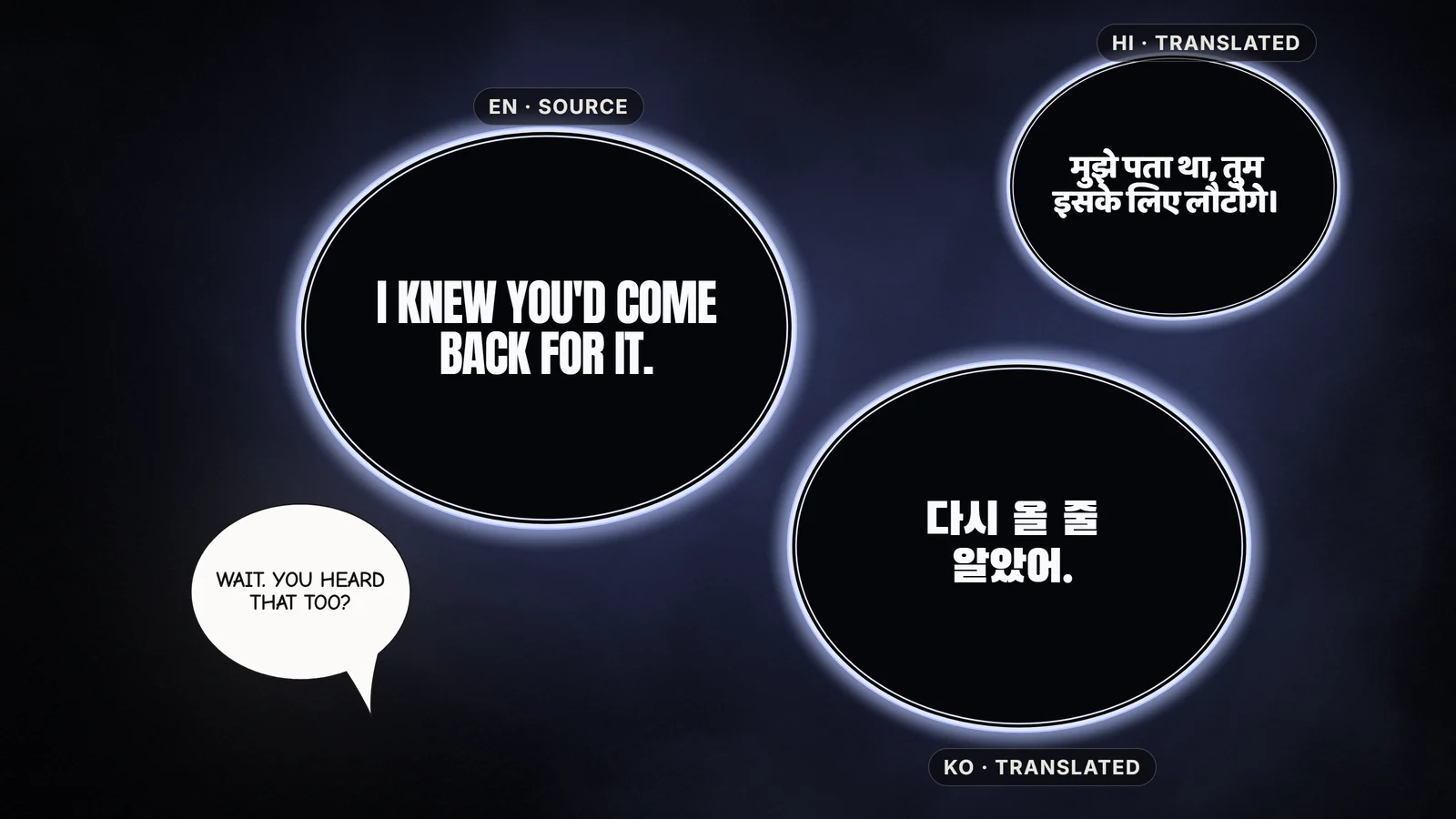
Because the words are separate from the art, a translated edition swaps the lettering and leaves the panel alone.
Chitra translation is not generally available yet. On accounts where it is enabled, open a published episode, select Translate, choose a language and select Start translation. The translated edition starts as a private draft. It uses expansion credits.
Also translate sound effects (SFX) is optional and applies only to sound words you placed with SFX Studio. Sound effects painted into your artwork stay part of the image.
Current limits
- Sound-effect stylingSFX Studio places and styles sound words; more advanced sound-effect finishes are still being built.
- Painted sound effectsSound words drawn into your art are part of the image and cannot be edited or translated in Chitra.
- TranslationAvailable only on enabled accounts, and only for published episodes.
- No mobile editorLettering needs a laptop or desktop. Readers can read on any device.
If something goes wrong
- A balloon tail or sound word is in the wrong place
- Select the balloon and adjust Tail position or Flip tail. Move an editable sound word on its panel. Check both in Mobile and Reader preview, then save the draft.
- My English episode still shows sound effects in the original language
- Those sound effects are painted into the artwork, and Chitra leaves your art as it is. Change them in your art file, or place an editable English sound word with SFX Studio.
- I pressed Publish but the episode is not live
- Publish sends the episode for review. It goes live once approved, or at its scheduled time.
- I cannot start a Chitra translation
- Translation may not be enabled for your account yet. Where it is, the Translate button needs a published episode (it is disabled on drafts), a target language, and enough expansion credits.